How to batch convert WebP to JPG without uploading images
A WebP image can display in your browser while an upload form or older editing workflow asks for JPG. Changing the filename from .webp to .jpg will not help: the image data must be converted too. For several files, use the batch WebP to JPG converter and review them together before downloading.
PicNexo processes the image files on your device. There is no account to create or image-processing upload to wait for. The original files remain on your computer; the JPG results are separate downloads.
Convert a batch of WebP files
- Choose your still WebP images.
Open WebP to JPG, then use Choose images or drag files into the selection area. Review the filenames and previews. Remove anything you do not want to convert before starting. You can select up to 20 images in one batch.
- Click Convert.
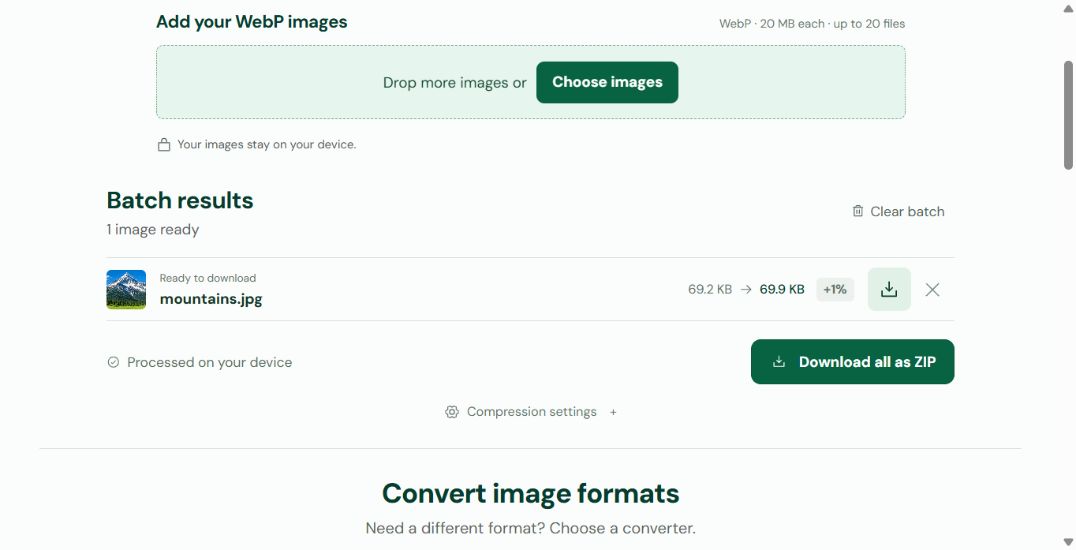
Select the Convert button after the files are ready. Keep the tab open while the images process. Each result shows its original and output sizes, so you can see which files became smaller or larger. A successful conversion creates actual JPEG data with a
.jpgfilename. - Check quality and backgrounds.
Open a downloaded result in the app that needs it. Inspect text, thin edges and detailed areas. JPG cannot store transparency: PicNexo fills transparent areas with white. For a transparent logo or cutout, choose WebP to PNG instead.
- Download the files you need.
Use the download button on an individual row, or Download all as ZIP for the ready results. Extract the ZIP before using the JPGs. Keep the source WebP files until you have checked the results in the destination app.
A measured WebP to JPG example
Chrome 157 · JPG quality 82% · 752 × 327 pixels · Measured 14 November 2026
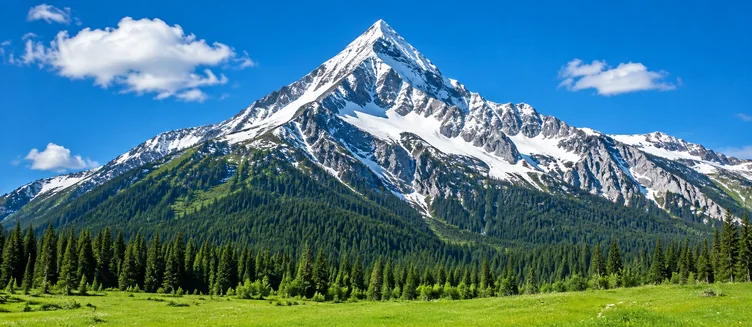
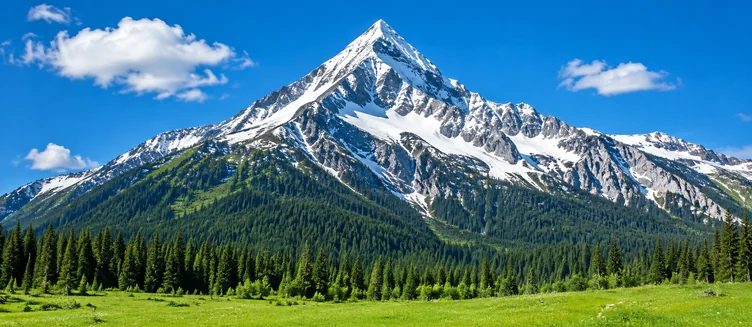
This photo became slightly larger as JPG. It is a compatibility conversion, not a guaranteed size saving. Dimensions were unchanged; results vary with the source image and browser.
If a JPG is larger than its WebP source
Converting formats solves compatibility; it does not guarantee a smaller file. WebP and JPG store detail differently. After processing, open Compression settings, adjust JPG / WebP quality and choose Apply to this batch. Lower quality may reduce bytes, but can also blur edges or introduce visible artifacts.
Reapply uses the source files retained in the current batch. You do not need to select an earlier JPG download as the next input. PicNexo keeps the image dimensions; it does not resize the picture or promise a target such as 100 KB.
Limits, unsupported files and stopping a batch
Each file must be a readable still WebP no larger than 20 MiB and 32 megapixels. The interface labels the file limit as 20 MB. Animated WebP is rejected rather than silently reduced to a single frame. If a file has an error, check the message on its row; other successful results can still be downloaded.
For a memory or browser error, retry with fewer files in a current browser. Clear batch discards the current workspace, including ready results, so save anything you need first. Leaving or refreshing the page also loses the working batch. None of these actions removes your source files from your computer.
What happens to the images?
The files are converted inside your browser. The website still loads its page assets over the network, and optional analytics starts only if you allow it. Read the privacy details for what is measured. For more on choosing formats, see the MDN image-format guide.